
Building an Interactive Stock Dashboard with Dash and Python
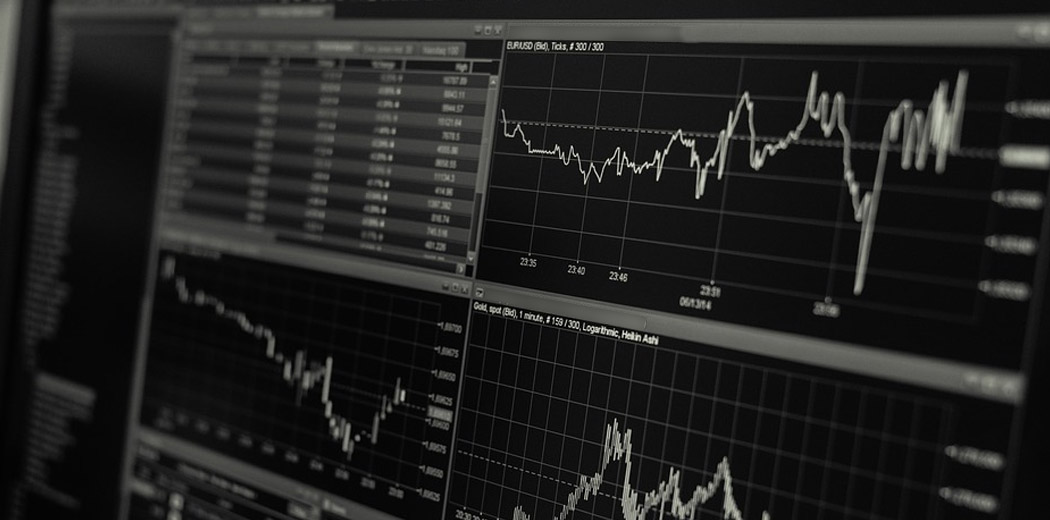
Monitoring the stock market and staying on top of your investments has never been easier thanks to the wealth of tools and technologies available today. In this tutorial, we‘ll walk through how to build your own interactive stock dashboard using Dash, a Python framework for building analytical web applications.
Dash allows you to create professional-quality dashboards without needing to be an expert in front-end web development. By leveraging the power of Python and its vast ecosystem of data science libraries, we can focus on the data and let Dash handle the rest.
Whether you‘re an individual investor looking to track your portfolio, or an analyst at a financial institution, having a customized dashboard can provide valuable insights at a glance. So let‘s dive in and start building!
Setting Up Your Environment
Before we start coding, we need to set up our development environment. We‘ll be using Python 3, so make sure you have that installed on your machine. We highly recommend working in a virtual environment to isolate the dependencies for this project.
To create and activate a virtual environment, run:
python3 -m venv myenv
source myenv/bin/activate
Next, we need to install the necessary libraries. Dash is built on top of Flask, Plotly.js, and React.js. But don‘t worry, we can install everything we need with one command:
pip install dash pandasHere we‘re installing Dash along with Pandas, a powerful data manipulation library that we‘ll leverage later on.
We‘re now ready to start building our dashboard!
Obtaining Stock Data
To populate our dashboard with real data, we need a source for historical stock prices. There are many APIs available, both free and paid, that provide this data. For this tutorial, we‘ll use the Yahoo Finance API via the yfinance library.
First install the library:
pip install yfinanceThen we can query for a particular stock‘s historical data over a specified date range:
import yfinance as yf

stock = "AAPL"  # Apple‘s stock ticker
data = yf.download(stock, start="2020-01-01", end="2021-12-31")
This returns a Pandas DataFrame containing the open, high, low, close prices and volume for Apple stock from Jan 1, 2020 to Dec 31, 2021.
Alternatively, if you already have historical data in a CSV or other format, you can read that in with Pandas:
import pandas as pd

data = pd.read_csv("stock_data.csv")
Now that we have our data, we can start building out the dashboard.
Building the Dashboard Layout
Every Dash app contains a layout, which describes what the app looks like. The layout is composed of a tree of components, such as HTML div elements, graphs, dropdowns, etc.
Here‘s a basic layout to get us started:
import dash
from dash import dcc, html

app = dash.Dash(__name__)

app.layout = html.Div([
    html.H1(‘Stock Dashboard‘),
    html.P(‘Select a stock from the dropdown:‘),
    dcc.Dropdown(id=‘stock-picker‘,
                 options=[{‘label‘: s, ‘value‘: s}
                          for s in [‘AAPL‘, ‘GOOG‘, ‘MSFT‘]]),
    dcc.Graph(id=‘stock-graph‘)
])
This layout contains a title, a paragraph, a dropdown menu for selecting different stocks, and a placeholder for a graph.
The dcc module provides a set of higher-level components like dropdowns, graphs, and sliders, while the html module lets us compose the layout with standard HTML tags.
To run the app, add this to the end of your file:
if __name__ == ‘__main__‘:
    app.run_server(debug=True)
Then in your terminal, run:
python app.pyNavigate to the URL shown (default is http://127.0.0.1:8050/) and you should see your basic dashboard!
Adding Interactivity
Right now our dashboard isn‘t very useful. The dropdown doesn‘t do anything yet. Let‘s wire it up to the graph so the chart updates when a new stock is selected.
In Dash, interactivity is achieved through a concept called callbacks. Callbacks are functions that are triggered by user interactions, such as clicking a button or selecting a dropdown option.
Here‘s how we can define a callback to update the graph:
from dash.dependencies import Input, Output

@app.callback(Output(‘stock-graph‘, ‘figure‘),
              Input(‘stock-picker‘, ‘value‘))
def update_graph(selected_stock):
    filtered_data = data[data[‘Symbol‘] == selected_stock]

    fig = {
        ‘data‘: [{‘x‘: filtered_data[‘Date‘], ‘y‘: filtered_data[‘Close‘], ‘type‘: ‘line‘}],
        ‘layout‘: {‘margin‘: {‘l‘: 40, ‘r‘: 0, ‘t‘: 20, ‘b‘: 30}}
    }

    return fig
This callback takes the value of the selected stock from the dropdown as input, filters the loaded data down to just that stock, and returns a line chart of its closing price history as the figure output to the graph component.
Now as you change the selection in the dropdown, the graph will update accordingly!
Visualizing the Data
Plotly, the graphing library underlying Dash, has built-in support for a variety of chart types, such as line charts, bar charts, pie charts, candlestick charts, and more.
To display the classic OHLC (open, high, low, close) candlestick chart often used for stock data, we can define the figure like this:
import plotly.graph_objects as go

fig = go.Figure(data=[go.Candlestick(x=filtered_data[‘Date‘],
                                     open=filtered_data[‘Open‘],
                                     high=filtered_data[‘High‘],
                                     low=filtered_data[‘Low‘],
                                     close=filtered_data[‘Close‘])
                     ])
Plotly figures are defined declaratively as a dictionary of data traces and layout options. This makes it easy to customize the chart‘s appearance.
For example, we can add a range slider to allow zooming in on specific date ranges:
fig.update_layout(
    xaxis_rangeslider_visible=True,
    title=f‘{selected_stock} Price History‘
)
Feel free to experiment with different chart types and configurations to best suit your data and use case!
Styling the Dashboard
In addition to the layout and charts, you may want to customize the overall look and feel of your dashboard. Dash apps are styled with CSS, either in an external stylesheet or within the app code itself.
For example, you can set background colors, font styles, and general padding and margins like this:
app = dash.Dash(__name__, external_stylesheets=[‘https://codepen.io/chriddyp/pen/bWLwgP.css‘])

app.layout = html.Div(style={‘backgroundColor‘: colors[‘background‘]}, children=[
    html.H1(‘Stock Dashboard‘, style={
            ‘textAlign‘: ‘center‘,
            ‘color‘: colors[‘text‘]
        }),

    ... # Rest of layout code
])
This uses an external stylesheet for some default styles and sets app-specific styles with inline CSS dictionaries. The colors object is a dictionary mapping semantic names to color hex codes:
colors = {
    ‘background‘: ‘#111111‘,
    ‘text‘: ‘#7FDBFF‘
}
Dash also provides a set of higher-level components like pre-styled cards, tabs, and dropdowns via the dash-bootstrap-components library. These can help you quickly put together a polished and professional-looking dashboard.
Deploying the App
So far we‘ve been running our app locally, but what if we want to share it with others? We need to deploy it to a web server accessible from the public internet.
There are many options for deploying Dash apps, from self-managed servers to fully-managed platforms. Some popular choices are:
- Heroku
- AWS (via Elastic Beanstalk or EC2)
- Google Cloud (via App Engine)
- PythonAnywhere
- Dash Enterprise (Plotly‘s commercial platform)
The deployment process will vary depending on the platform, but generally involves:
- Ensuring your app code is in a Git repository
- Specifying your app‘s dependencies in a requirements file
- Configuring the server to run your app code
- Setting up a domain name and SSL certificate
Refer to the documentation for your chosen platform for specific deployment instructions. Plotly also maintains a guide with best practices for deploying Dash apps: https://dash.plotly.com/deployment.
Next Steps
Congratulations, you now have a working stock dashboard that you can deploy and share! Some additional features you may want to consider adding:
- Support for more stock symbols, perhaps loading the list dynamically
- Additional data views, like volume charts or technical indicators
- Comparisons between multiple stocks
- Fundamental data on each company, like sector, market cap, P/E ratio, etc.
- Real-time price updates via a streaming API or web sockets
- User-customizable dashboard layout and chart settings
- Authentication and user-specific portfolios and watchlists
The possibilities are endless, and the modular nature of Dash makes it easy to extend and customize your dashboard as your needs evolve.
Conclusion
In this tutorial, we‘ve seen how Dash and Python can be used to build interactive, data-driven stock dashboards. Dash abstracts away much of the complexity of web development, allowing you to focus on working with the data.
We loaded historical stock data, created a basic dashboard layout, added interactivity through callbacks, customized the chart and styling, and discussed options for deploying the finished app.
Equipped with these fundamentals, you‘re now ready to build all sorts of analytical dashboards, both for personal use and for your organization. The rich ecosystem of Python libraries for data analysis and visualization, coupled with Dash‘s declarative approach to app building, provides a powerful and flexible toolkit for data exploration and storytelling.
Happy Dashing!


