
How to Temporarily Disable AVG Antivirus (2026 Expert Guide)
As a cybersecurity expert with over a decade of experience, I‘ve seen firsthand just how crucial a strong antivirus solution like AVG is. It protects your devices and data from the ever-evolving landscape of malware, viruses, and other digital threats.
However, I also understand there are certain situations where you may need to briefly disable your antivirus. Perhaps you‘re installing software and AVG is flagging it as a false positive. Or maybe you‘re troubleshooting a technical issue and need to rule out your antivirus as the cause.
Whatever your reason, it‘s important to know how to properly disable AVG temporarily and, more importantly, when it‘s safe to do so. Surfing the web without active antivirus protection is like walking a tightrope without a safety net – one wrong move and you could be in serious trouble!
In this comprehensive guide, I‘ll walk you through the steps to disable AVG on Windows, Mac, and Android devices. I‘ll also share some expert tips for staying secure, even when your antivirus is briefly deactivated. Let‘s dive in!
Is It Safe to Disable Your Antivirus?
Before we get into the how-to, let‘s address the elephant in the room – is it ever truly safe to turn off your antivirus? The short answer is, not really. But sometimes it‘s a necessary evil.
The primary job of any antivirus program, AVG included, is to monitor your system in real-time and proactively block potential threats. Every time you visit a website, download a file, or open an email attachment, AVG is scanning it to make sure it‘s not malicious.
When you disable that real-time scanning feature, even for a few minutes, you‘re essentially leaving the front door wide open for malware to waltz right in. And make no mistake, cybercriminals are constantly knocking, just waiting for an opportunity to infiltrate your system.
Consider these eye-opening statistics:
-
There are now over 1.1 billion malware programs out there, and the AV-TEST Institute registers over 450,000 new malware and potentially unwanted applications every single day (AV-TEST Security Report 2022).
-
Malware increased by 358% overall in 2022, and ransomware attacks specifically rose by a staggering 435% (Deep Instinct Cyber Threat Report 2022).
-
Globally, 30.5% of computers encountered malware in 2022, and an estimated 16.84 million malware files were detected each month. 15.12% of devices specifically encountered ransomware.
The numbers don‘t lie – the threat of malware is very real, which is why antivirus software is not just recommended, but essential in today‘s digital age. And those threats are multiplying at an alarming rate.

Source: AV-TEST Institute
That said, I acknowledge there are certain instances where temporarily disabling AVG may be unavoidable. If you absolutely must turn off protection, make sure to only do so when absolutely necessary and only for as long as needed. Reactivate AVG immediately after you finish the task at hand.
And while your antivirus is dormant, avoid any risky online behavior. Don‘t open suspicious emails, click unfamiliar links, or download anything from the web. Basically, act like your technological health depends on it – because it does!
With those precautions in mind, let‘s look at how to safely disable AVG across your devices.
How to Disable AVG on Windows 10 & 11
The process to temporarily turn off AVG antivirus on Windows is fairly straightforward:
-
Locate the AVG icon in your Windows taskbar. It looks like a green and black circle. If you don‘t see it, click the arrow to display hidden icons.
-
Right-click the AVG icon and select "Temporarily disable AVG protection" from the menu that appears.
-
Choose how long you want protection paused for. AVG gives you 4 options:
- 10 minutes
- 1 hour
- Until computer restart
- Permanently
Select the shortest time that allows you to complete your task, then click "Stop protection".

-
Enter your Windows administrator password if prompted to confirm the change.
You‘ll know AVG is successfully deactivated when you see a red circle icon in your taskbar. To re-enable protection, simply right-click the AVG icon again and select "Enable AVG protection".
As a cybersecurity professional, I can‘t stress enough how important it is to remember that last step. The sooner you turn AVG back on, the better protected you‘ll be. Don‘t let disabling protection become a habit!
Disabling AVG Antivirus on Mac
Turning off AVG on macOS requires a few extra clicks compared to Windows, but it‘s still a relatively easy process. Here‘s how:
-
Click the AVG icon located on the top menu bar of your Mac‘s home screen and select "Open AVG" from the drop-down.
-
From the main AVG screen, click AVG icon > Preferences on the top menu bar.
-
Go to the "Components" tab. Here you‘ll see a list of AVG‘s individual protection layers with accompanying checkboxes.
-
Uncheck the box next to each component you want to turn off. The core AVG shields are:
- File Shield
- Web Shield
- Email Shield
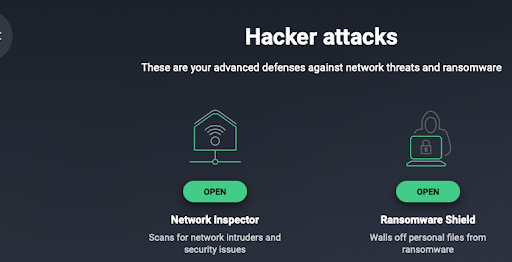
- Ransomware Shield
-
Click "OK" to save your changes. You may need to enter your Mac administrator username and password to confirm.
In a perfect world, you‘d leave all of those shields active 24/7. But if you‘re experiencing issues with a particular AVG component, disabling it individually can help pinpoint the problem without leaving your entire system vulnerable.
Just remember to recheck those boxes once your troubleshooting is complete! AVG is most effective when all of its layers are working together to keep you safe.
How to Turn Off AVG on Android
For those using AVG mobile security on Android, the steps to deactivate the app are as follows:
-
Open the AVG mobile app and tap the gear icon in the top-right corner to access settings.
-
Go to the Protection section and toggle "Real-time protection" to the off position. Confirm you want to disable this key security feature.
-
If you only want to turn off specific AVG functions, you can also toggle off individual shields like Web Shield, App Shield, and Wi-Fi Security.
While disabling mobile antivirus may seem less risky than on a computer, remember that your smartphone likely contains just as much sensitive data (if not more) than your PC. And considering mobile malware increased by over 500% in 2022, securing your Android device is more critical than ever.
If you must temporarily disable AVG on your Android, follow the same guidelines I mentioned earlier – turn it off for the minimum amount of time necessary and avoid any dicey downloads or websites in the interim. The adage "better safe than sorry" most definitely applies here!
Should You Uninstall AVG Completely?
If AVG is causing persistent issues or you‘re simply ready to try a different antivirus solution, you may be considering removing it from your device entirely. While uninstalling AVG is certainly an option, I only recommend it if you plan to replace it with another reputable security program.
Why? Well, in addition to real-time malware scanning, AVG provides other key security features like web and email protection, remote access shield, fake website detection, and more. It‘s a robust cybersecurity package that‘s consistently performed well in independent lab tests.
In AV-Comparatives‘ most recent real-world protection test, AVG completely blocked 99.8% of malicious test cases, placing it in the elite "Advanced+" award tier. Data like this is exactly why so many of my cybersecurity peers recommend AVG products.

Source: AV-Comparatives
Uninstalling AVG means losing all of those powerful protective layers, which could open the door to viruses, data breaches, and other cyber threats. If you do decide to part with AVG, make sure you have a replacement antivirus ready and waiting in the wings!
For those steadfast on uninstalling, here‘s a quick rundown of the process:
On Windows: Go to Settings > Apps > Apps & Features. Find and select "AVG AntiVirus", then click "Uninstall" twice. Allow the AVG Uninstaller to run, and reboot your PC if prompted.
On Mac: Simply drag the AVG icon from your Applications folder into the Trash. Empty the trash and restart your computer to completely remove AVG.
On Android: Open Settings and go to Apps/Application Manager. Tap "AVG Antivirus" from the app list and select "Uninstall", then "OK" to confirm.
My expert recommendation would be to keep AVG installed and only disable it temporarily as an absolute last resort. But if you‘re set on removing it, just make sure you have another antivirus lined up as a replacement! Speaking of which…
Top-Rated AVG Alternatives
While AVG provides excellent malware protection, I know it‘s not the ideal solution for everyone. If you‘re in the market for a new antivirus, consider these highly-rated options:
-
Norton 360 – This premium security suite pairs unbeatable virus protection with additional features like a VPN, identity theft monitoring, and 10GB of secure PC cloud backup. It‘s a great choice if you want an all-in-one cybersecurity companion.
-
Bitdefender – Bitdefender has aced independent lab tests for malware detection and offers extras like anti-phishing/anti-fraud protection, multi-layer ransomware defense, and a VPN. Plus, it uses minimal system resources!
-
TotalAV – If you‘re new to antivirus software, you‘ll appreciate TotalAV‘s intuitive, easy-to-use interface. In addition to robust malware scanning, it includes a VPN, password vault, and performance-boosting tools.
Ultimately, the best antivirus for you will depend on your specific needs and budget. But whether you stick with AVG or switch to an alternative, make sure you keep it installed and active as much as possible.
Disabling AVG: FAQs
Before I wrap up this guide, let‘s address a few common questions I hear about disabling AVG:
Will disabling AVG improve my computer‘s speed?
Not significantly. While running real-time scans uses some computing power, AVG is designed to minimize system impact. If you‘re experiencing major slowdowns, there‘s likely another issue at play. Try closing memory-hogging programs and freeing up disk space first before blaming your antivirus.
How can I prevent AVG from blocking a trusted program?
Easy! Open AVG, go to Menu > Settings > General and click "Exceptions". Here you can manually add files, folders, or URLs you want AVG to allow. Just be absolutely certain the program/website you‘re exempting is trustworthy!
Can I disable AVG from running at startup?
On Windows, type "startup apps" into the taskbar search and open the menu. Find AVG in the list and toggle it off. Keep in mind this will significantly delay how quickly AVG starts protecting you after bootup. I personally recommend keeping it as a startup program.
Is there a way to schedule AVG scans for low-usage times?
Absolutely! In fact, scheduling scans is a great way to minimize performance impact. Open AVG and go to Menu > Settings > Antivirus. Under "Scans", click the scan type (e.g. Deep Scan, USB/DVD Scan, etc.), then "Scheduling" to choose your preferred scan frequency and time.
Ultimately, while disabling your antivirus temporarily is possible, it should only be done cautiously and sparingly. Keep AVG active whenever possible, and if you do need to turn it off, get it back up and running ASAP!
Trust this cybersecurity expert – a proactive, layered approach to digital security is the best way to protect yourself from the ever-growing lineup of cyber threats. AVG is a powerful ally in that process, so keep it in your corner whenever you can!
)