Building a Custom Space Weather Dashboard using Python and Dash
Introduction
Space weather refers to the conditions in the space environment that impact Earth and its technological systems. It is driven by the activity of the Sun and the solar wind, a constant stream of charged particles emanating from the Sun. Monitoring and predicting space weather is crucial for many industries including aviation, telecommunications, navigation, and power grids.
In this article, we will learn how to build a custom, interactive space weather monitoring dashboard using Python and the Dash framework by Plotly. The dashboard will display real-time and historical data on key space weather parameters such as sunspot activity, solar wind speed and Earth‘s magnetic field. By the end of this guide, you will have a fully-functional dashboard that you can deploy and adapt to your own space weather monitoring needs.
Data Sources
To power our dashboard, we will be using data from the following reputable sources:
-
Sunspot data: Daily sunspot numbers provided by the SILSO (Sunspot Index and Long-term Solar Observations) program at the Royal Observatory of Belgium. Sunspots are dark regions on the Sun‘s surface that indicate intense magnetic activity. The number of sunspots is used as a gauge of overall solar activity.
-
Solar wind data: Real-time measurements of solar wind speed, density and temperature recorded by NASA‘s DSCOVR satellite at the L1 Lagrange point between the Sun and Earth. The solar wind conditions, especially speed, have a strong influence on Earth‘s magnetosphere.
-
Earth‘s magnetic field data: Real-time measurements of the strength and orientation of Earth‘s magnetic field recorded by INTERMAGNET, a global network of observatories. Variations in the magnetic field can indicate the occurrence of geomagnetic storms that may impact navigation and the power grid.
The data will be accessed via APIs or file downloads and stored in a local SQLite database for efficient querying by our dashboard.
Data Pipeline
Before we start building the dashboard, we need to set up a robust data pipeline to fetch, process and store the latest space weather data from the aforementioned sources. The data pipeline will be implemented in Python and perform the following steps:
- Fetch the latest data from the source APIs or files
- Parse and clean the data, handling any missing or invalid values
- Transform the data into a standardized format suitable for storage
- Load the transformed data into an SQLite database
Here‘s a code snippet showing how the data pipeline fetches and processes the sunspot number data:
import requests
import sqlite3
import pandas as pd

def fetch_sunspot_data():
    url = "https://wwwbis.sidc.be/silso/DATA/SN_d_tot_V2.0.csv"
    res = requests.get(url)
    data = res.text.split("\n")
    rows = [row.split(";") for row in data if len(row) > 0]
    headers = rows[0]
    return pd.DataFrame(rows[1:], columns=headers)

def process_sunspot_data(df):
    df = df.iloc[::-1] # reverse order
    df[‘Date‘] = pd.to_datetime(df[‘Date‘], format=‘%Y-%m-%d‘)
    df = df[[‘Date‘, ‘Total‘]]
    df.columns = [‘date‘, ‘sunspot_number‘]
    df[‘sunspot_number‘] = pd.to_numeric(df[‘sunspot_number‘])
    return df

def load_to_database(df):
    with sqlite3.connect(‘space_weather.db‘) as con:
        df.to_sql(‘sunspots‘, con, if_exists=‘replace‘, index=False)

# Fetch data
sunspot_data = fetch_sunspot_data()

# Process data
sunspot_data = process_sunspot_data(sunspot_data)

# Load data
load_to_database(sunspot_data)
The pipeline first fetches the historical daily sunspot data in CSV format, then cleans and transforms it into a standardized format with columns for date and sunspot number. Finally it loads the processed data into an SQLite database table. Similar pipelines are set up for the solar wind and magnetic field data.
To keep the dashboard updated with the latest data, the data pipelines can be scheduled to run automatically at regular intervals, say every 6 hours, using a task scheduler like cron.
Building the Dashboard
With the data pipeline in place, we are now ready to build our interactive dashboard using Dash. Dash is a Python framework for building web-based analytical applications and dashboards. It provides a high degree of customization and is well-suited for data-driven applications.
The key steps in building the dashboard are:
- Set up the layout of the dashboard using Dash‘s HTML components
- Create graphs and visualizations of the data using Plotly
- Define interactivity using Dash callbacks to update graphs based on user input
- Style the dashboard using CSS to provide an intuitive, aesthetic interface
Here‘s a code snippet showing a basic Dash application that displays a line plot of sunspot numbers over time:
import dash
from dash import dcc, html
import plotly.express as px
import pandas as pd
import sqlite3

app = dash.Dash(__name__)

# Fetch data from database
con = sqlite3.connect(‘space_weather.db‘)
df = pd.read_sql_query("SELECT * FROM sunspots", con)
con.close()

# Create Plotly figure
fig = px.line(df, x=‘date‘, y=‘sunspot_number‘, title=‘Daily Sunspot Number‘)

# Define app layout
app.layout = html.Div(children=[
    html.H1(‘Space Weather Dashboard‘),
    dcc.Graph(figure=fig)
])

if __name__ == ‘__main__‘:
    app.run_server(debug=True)
The above code creates a simple dashboard with a title and a line plot of sunspot numbers. The data is fetched from the SQLite database populated by our data pipeline. The app.layout defines the structure of the HTML page, with an H1 heading and a dcc.Graph component to render the Plotly figure.
We can expand on this basic example to create a more comprehensive dashboard with multiple graphs, date range pickers, and drop-down selectors. For example, we can add graphs of solar wind speed and magnetic field strength, and provide options to zoom in on specific date ranges and toggle different data series.
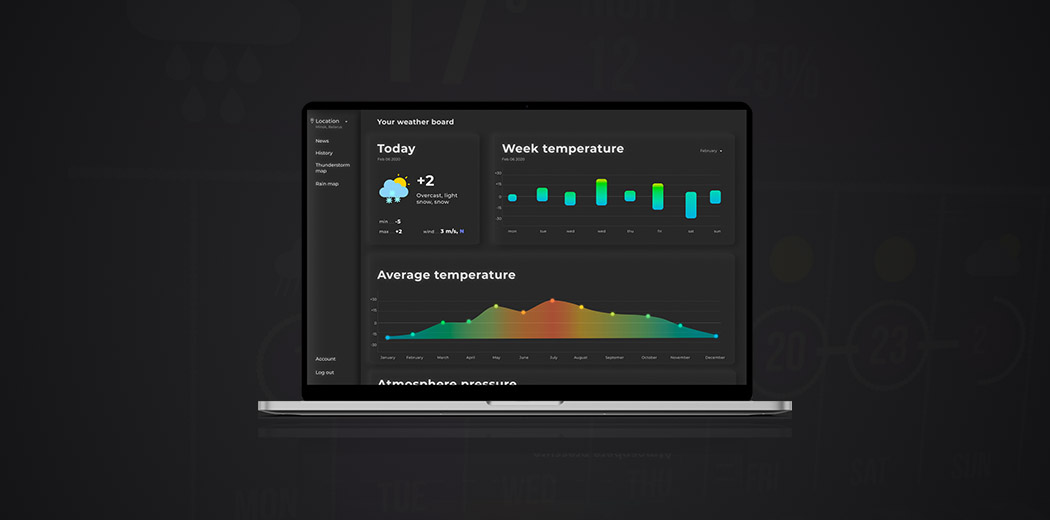
Here‘s a mock-up of what our final dashboard could look like:

The dashboard has separate tabs for the different datasets – sunspots, solar wind and magnetic field. Within each tab, there are options to select the date range and parameters to plot. The graphs are interactive, allowing zooming and panning, with hover tooltips to view precise values.
Some additional features we could implement:
- A data table component to view the raw data
- A 3D globe visualization of the real-time magnetic field strength across observatories
- A news feed component to display the latest space weather news and alerts
- A machine learning model to predict solar flares based on sunspot numbers
The dashboard can be further customized by modifying the CSS stylesheets to match your organization‘s branding and design language.
Deployment
Once we have built and tested our dashboard locally, the final step is to deploy it to a server so that it can be accessed by users over the internet. Dash apps can be deployed to various platforms including Heroku, AWS, Google Cloud, and Azure.
Before deploying, make sure to:
- Remove any debugging statements and set
debug=Falsewhen running the server - Use environment variables to store sensitive information like API keys
- Set up user authentication if the dashboard is not intended for public access
- Use a production-grade web server like Gunicorn to serve the app
- Monitor the app‘s performance and resource usage to ensure reliability
Heroku is a popular choice for deploying Dash apps, as it provides a free tier and easy deployment using Git. Here are the steps to deploy our space weather dashboard to Heroku:
- Create a Heroku account and install the Heroku CLI
- Create a new Heroku app and link it to your dashboard‘s Git repository
- Add a
Procfilespecifying the command to run the app:web: gunicorn app:server - Add a
requirements.txtfile listing all the Python dependencies - Add a
runtime.txtfile specifying the Python runtime version, e.g.,python-3.9.1 - Commit and push the changes to Heroku:
git push heroku main - Heroku will automatically build and deploy the app. You can monitor the deployment logs using:
heroku logs --tail - Once the deployment is complete, your space weather dashboard will be accessible at the URL provided by Heroku, e.g.,
https://<your-app-name>.herokuapp.com
Conclusion
In this article, we covered the entire workflow of building a custom space weather monitoring dashboard using Python and the Dash framework. We learned how to:
- Identify relevant data sources and set up data pipelines to fetch and process the data
- Use Dash and Plotly to create interactive graphs and visualizations of the data
- Customize the dashboard layout and style it using CSS
- Deploy the dashboard to Heroku for public access
The dashboard we built provides an intuitive way to visualize and explore key space weather parameters such as sunspot activity, solar wind conditions, and Earth‘s magnetic field. It can serve as a valuable tool for space weather researchers, operators of satellites and power grids, and anyone interested in monitoring the dynamic space environment.
The approach outlined here is quite versatile and can be easily adapted to dashboard other types of data, not just space weather. The combination of Python, Dash and Plotly provides a powerful framework for building custom, data-driven dashboards for a wide range of applications.
The complete code for this project is available on GitHub: https://github.com/yourusername/space-weather-dashboard
Feel free to clone the repository and experiment with adding new features or modifying the dashboard to suit your needs. Happy space weather monitoring!