
Top 5 Uses for Mocha Filmora that Will Level Up Your Video Editing
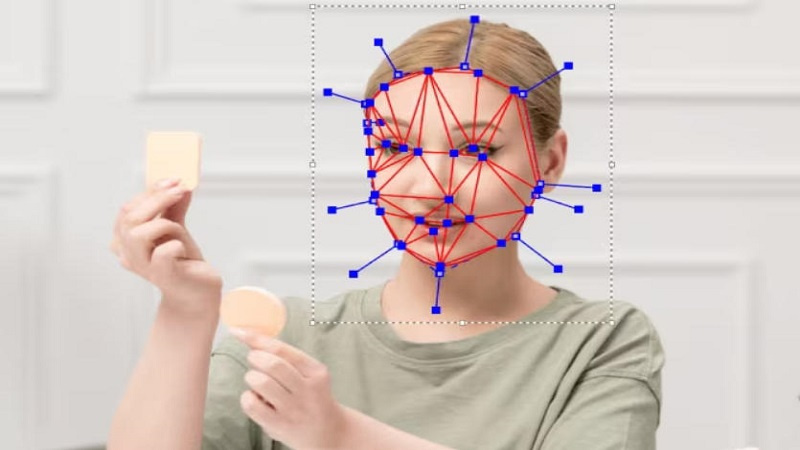
Want to edit like a pro? Know 5 creative ways to use Mocha Filmora to enhance tracking, effects, and stability in your Filmora projects.
Have you ever been impressed by a YouTube video or movie with Hollywood-style effects? Don't be surprised! It is all done with the amazing feature Mocha VFX. That is a powerful tracking and masking tool for video editing.
Fortunately, with the addition of the Mocha plugin, Filmora users can also achieve amazing VFX in their videos. The best part? Video editing skills aren’t necessary for you to do this. With just a few clicks, you can improve tracking and have a studio-quality result.
Now, if you are a beginner and want to use Mocha Filmora accurately, here are the 5 best uses you can try. Let’s learn everything about Mocha Filmora and how it makes VFX easier.
Part 1: What Is Mocha Filmora and Why It Matters
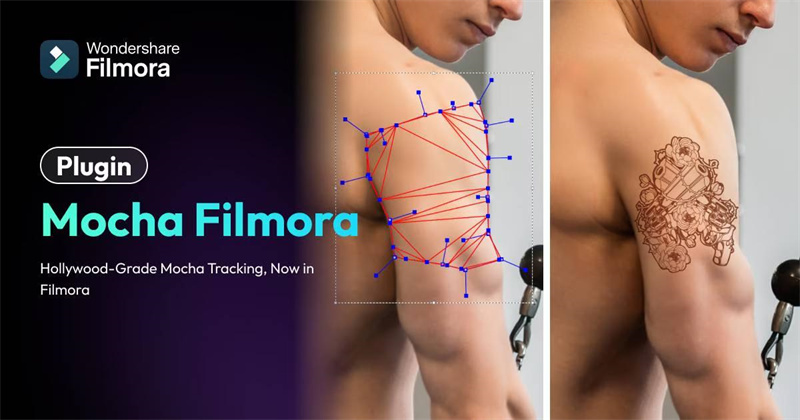
If you want to combine creativity and innovation, give Mocha Filmora a try. It is Wondershare Filmora’s advanced tracking and VFX Plugin. Instead of relying on basic point tracking, it is powered by Mocha’s industry-leading planar technology.
This makes your tracking stable and dependable for things like
- Screens
- Skin and faces
- Clothing or fabrics
- Background walls
- Moving objects
It's the same trusted technology used by many professional film studios to make things easier for creators. Whether you want to eliminate the common frustration of shaky effects or messy masks. It is no wonder it takes things to the next level.
Part 2: 5 Uses for Mocha Filmora that Will Level Up Your Video Editing
Mocha Filmora unlocks smart editing by offering high-quality motion editing, giving every creator the power to create cinematic videos effortlessly.
Here are 5 smart uses of Mocha Filmora to upgrade your edits:
1. Replace Screens with Realistic Motion
Screen replacement becomes far easier and more accurate with Mocha Filmora. Rather than tweaking every single frame manually, Mocha tracks the surface and keeps your new screen aligned while the device moves.

It works beautifully
- To easily track screens on phones, laptops, or digital screens
- Maintain angles and movements for a realistic result
- Quickly swap out screens with apps, UI designs, or fresh visuals
- Work seamlessly when the device tilts, rotates, or moves across the frame
This is super handy for tech explainers, product commercials, or storytelling shorts where the screen shifts slightly. With the help of the Mocha plugin, your replacement stays stable and natural. You get a seamless, professional-looking screen insert. That feels like it was part of the original shot.
2. Add Realistic Effects with Face & Object Tracking
Mocha Filmora’s powerful tracking gives your effects a more organic and believable feel. It perfectly follows moving objects and faces. This makes your edits feel smoother and visually seamless.
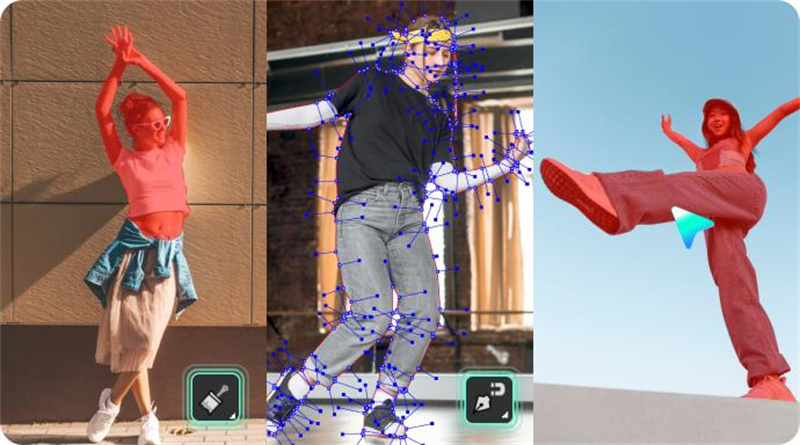
It is ideal for:
- Tracking adapts to curved or flexible surfaces like skin or fabric
- Keep effects naturally attached, even when the subjects turn or change shape
- Ideal for makeup effects, digital tattoos, or stylized face filters
- It works perfectly on objects such as bags, outfits, or props
Deliver studio-quality tracking without requiring advanced VFX skills. For creators who want polished transactions or cinematic moments without stress. Powermash adds a layer of realism that basic tools can’t achieve.
3. Stabilize Shaky Footage Like a Pro

When your clips feel shaky or handheld, Mocha Filmora brings back stability with impressive precision. It produces more natural results than basic stabilizers.
It really shines in situations like
- Work on action clips, quick-handled scenes, or Travel blogs
- Smooth out unpredictable shakes while preserving natural camera movements
- Uses advanced planar tracking to analyse motion patterns in your footage
- Reduce micro-jitters for a steadier look
No complicated settings are required, but you can simply apply it, adjust the strength, and refine it. Plus, you can also avoid common problems like wobbling or warping because Mocha relies on planar tracking rather than basic edge detection.
4. Track Logos and Text to Moving Objects
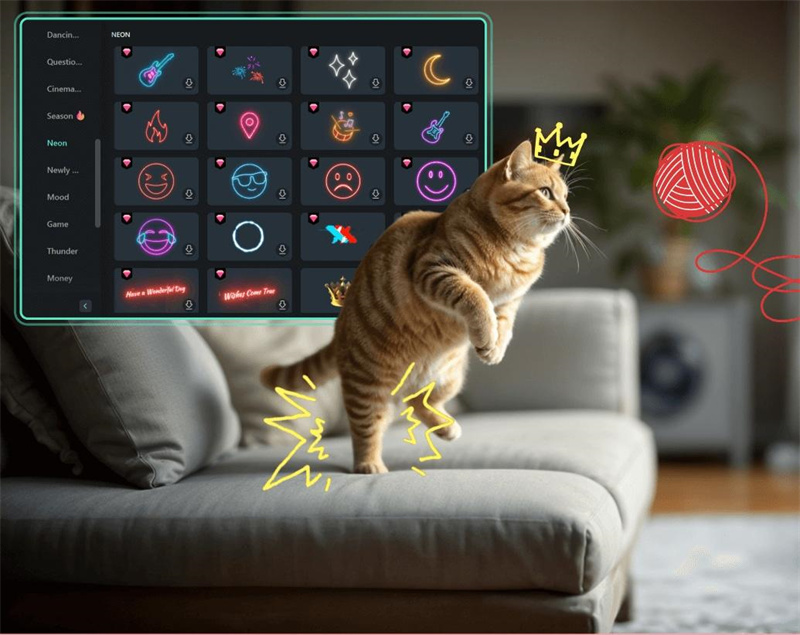
If you want graphics that follow motion flawlessly, Mocha offers quick and accurate tracking. Surprisingly, it maintains smooth motion even in irregular or fast scenes.
It delivers amazing results for
- Attach texts, logos, or graphics to any moving object
- Track direction, speed, and perspective changes
- Great for branding video, product demos, or creative overlays
- Aligned graphics naturally, so they look embedded in every scene
Mocha Filmora makes your videos more polished and professionally calibrated. Your videos gain clarity, balance, or a more realistic visual structure.
5. Fix Lens Distortion and Perspective Issues

Footage from the action cameras or drones often wraps your visuals. Mocha helps to correct these problems instantly by using surface-based analysis.
It is effective for
- Identify lens distortion, such as fisheye or stretching
- Best for wide-angle blogs or GoPro footage
- Ensure buildings, roads, and objectives appear accurately
- Straightens edges and restores natural proportions for a cleaner look
Simple controls let you refine adjustments without needing expertise. It reduces visual distraction and gives you visuals that feel appealing and more cinematic.
Conclusion
So, after knowing all the best uses of Mocha Filmora, it helps you get better clarity about how to use it efficiently. Whether you aim to replace screens, make the shake effects stable, or attach logos, the Mocha plugin does everything simply.
The best thing is that you don't need to be a video editing expert while working with Wondershare Filmora. Now, if you are creating content for YouTube or looking to improve it, you must use Mocha Filmora to stand out from other creators.


