How to Check If Your Proxy Is Working Before You Log In Anywhere
A proxy can look fine in settings and still fail the moment you actually need it. That is why the right first question is not “Do I have a proxy?” It is “Is the exact browser, app, or script I care about really using this proxy right now?”
That distinction matters more than most people expect. A browser may have its own proxy settings. Your operating system may have a separate proxy layer. A VPN connection can have yet another proxy setting. A command-line tool may read environment variables that override what you thought you configured. So the proxy can be valid and working in one place while your real task is still going out directly from your home, office, or server IP.
If you only discover that after logging into an account, running a scraper, testing location-sensitive pricing, or submitting traffic to a third-party service, you are already too late. The safer workflow is to verify the route first, then use it for the real job.
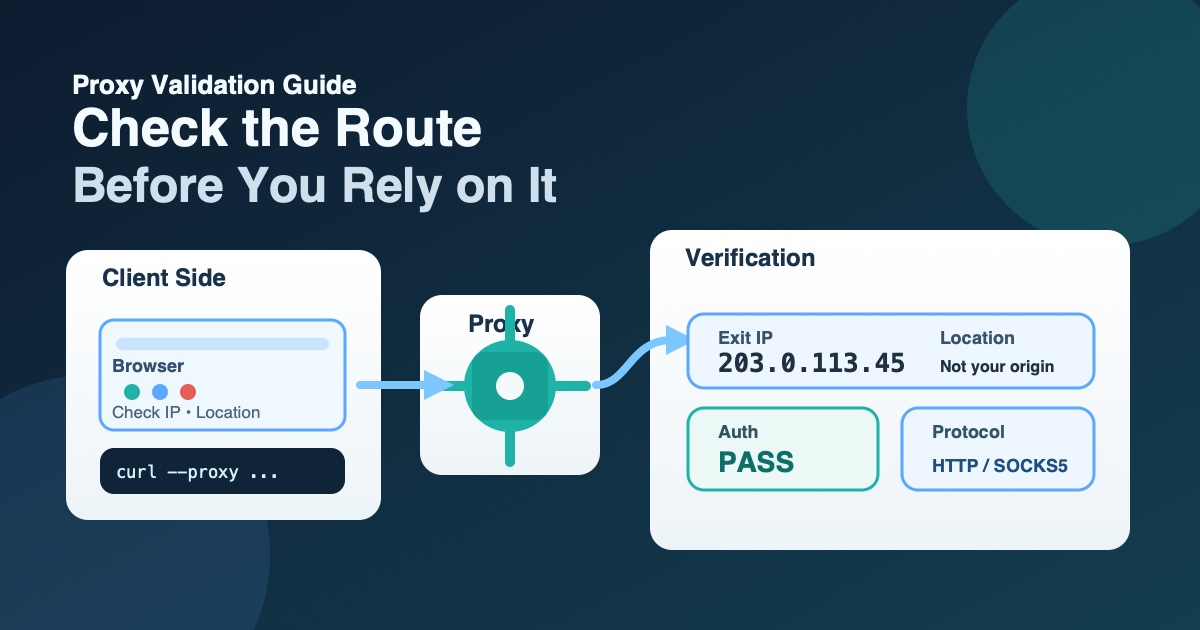
This guide explains how to check whether a proxy is truly working before you rely on it. The emphasis is practical: confirm the exit IP, confirm the right protocol, confirm authentication, and confirm that the client you actually plan to use is the one sending traffic through the proxy.
What “working” actually means
A proxy is not “working” just because you can connect to a host and port. For most users, a proxy is only useful when four things are true at the same time:
- your traffic is actually passing through the proxy instead of going direct;
- the exit IP is different from your normal IP;
- the proxy supports the protocol your task needs, such as HTTP, HTTPS tunneling, or SOCKS5;
- the client you care about, whether that is a browser, a desktop app, curl, or a script, is the one using it.
That last point is where mistakes usually happen. Many people verify a proxy in one tool and then assume every other tool on the machine will behave the same way. In practice, that is not guaranteed. Firefox exposes its own connection settings. Windows supports automatic detection, setup scripts, and manual configuration. macOS exposes separate proxy types in network settings. Even VPN connections can have their own proxy configuration path in Windows. So a proxy result from one surface is helpful, but it is not final proof for another surface.
Check the same client you plan to use
The fastest way to get a false sense of safety is to test in the wrong place.
If your real task happens in Firefox, check the proxy in Firefox. Mozilla’s support documentation makes it clear that Firefox can use no proxy, auto-detect settings, use system proxy settings, use manual proxy configuration, or pull settings from an automatic configuration URL. That means Firefox may behave differently from another browser or from the operating system itself.
If your real task depends on your operating system’s network path, then test there. Windows allows automatically detected settings, a setup script, or manual proxy configuration. Apple’s macOS user guide shows a similar split with automatic discovery, automatic configuration, and specific proxy types such as web proxy, secure web proxy, and SOCKS proxy. In other words, the place where you configured the proxy is part of the test. If the setting lives in one layer and your app ignores that layer, the proxy is not protecting the task you actually care about.
Before you run any tests, write down the exact client and route you want to validate:
- Chrome or Firefox browser session
- Windows or macOS system proxy
- specific app with its own network settings
- a terminal command such as curl
- a script or automation task
That keeps you from mixing evidence from unrelated paths.
Run a quick exit-IP and status check first
Once you know which client you are validating, start with a quick exit-IP test. The goal here is simple: does traffic from this client leave through the proxy, and does the exit IP and location match what you expect?
For a fast first pass, you can run your list through a proxy checker to see working status, speed, type, anonymity signals, exit IP, location, and basic risk details before you spend time debugging the rest of your stack. The page states that it supports HTTP, HTTPS, and SOCKS5 proxies, accepts several common input formats, and does not store pasted proxies.
At this step, do not over-interpret the result. A checker can tell you a lot, but not everything. It can show that the proxy responds, what IP it appears to exit from, and whether obvious forwarding headers are present. That is useful. But it does not prove the proxy is safe for every website, every browser fingerprint, every certificate chain, or every future request. Think of it as a first filter, not the final verdict.
What you want from this step is a clean sanity check:
- the proxy responds;
- the exit IP is not your normal one;
- the country, region, or city is at least directionally correct for your use case;
- the protocol type matches the proxy you believe you bought or configured.
If any of those are already wrong, stop there and fix that before moving on. There is no value in deeper troubleshooting when the first test already shows the route is not what you expected.
Confirm the protocol you actually need
Not all proxies solve the same problem. That matters because users often say a proxy “works” when what they really mean is that some basic HTTP request got a response.
For normal web use, you may need HTTP or HTTPS behavior. MDN’s proxy documentation explains that HTTPS through an HTTP proxy depends on tunneling behavior. If the proxy does not support the right form of tunneling, you can get a confusing result where simple requests appear fine but secure sites fail or behave inconsistently. That is one reason a proxy can seem healthy in a superficial test but still break in real usage.
SOCKS adds another layer of confusion. In curl’s official documentation, `socks5://` and `socks5h://` do not mean exactly the same thing. One resolves hostnames locally and the other sends the hostname to the proxy for remote resolution. If your task is sensitive to where DNS resolution happens, that detail can completely change the outcome.
This is why you should define the success condition in plain language before the test:
- Do you need a browser session to load secure websites normally?
- Do you need a command-line client to authenticate successfully?
- Do you need the remote side to see the proxy’s network identity instead of your local resolver path?
- Do you need one stable exit IP or just any working route?
When those requirements are vague, it is easy to approve the wrong proxy for the wrong job.
Test authentication before blaming the target site
Authentication errors waste a lot of time because they often look like generic network failures. In reality, the proxy may be reachable but refusing to pass the request onward.
The clearest example is `407 Proxy Authentication Required`. MDN documents that this status means valid credentials were not supplied for the proxy. Curl’s official documentation treats proxy authentication as its own distinct configuration step as well. So if you see a 407, the problem is not “the site blocked me” yet. The problem is earlier in the chain: the proxy did not accept the credentials you sent, or it did not receive them in the way it expected.
Common causes include:
- username and password entered in the wrong format;
- wrong proxy scheme such as treating a SOCKS proxy like an HTTP proxy;
- copying credentials into one app but forgetting that another app needs them separately;
- assuming saved operating-system credentials automatically carry into a browser or script.
This is another reason to test inside the exact client you care about. A proxy can authenticate fine in one tool and fail in another because the second tool is not sending credentials the same way.
Remember that operating system, browser, and script layers can disagree
One of the most practical lessons from the official docs is that proxy settings are layered. Windows proxy settings can be automatic, scripted, or manual. Firefox can use system proxy settings or manual settings of its own. macOS allows separate web, secure web, and SOCKS proxy entries. Curl can discover proxies from environment variables. That is enough to produce several different network paths on the same machine.
So if one test shows the expected exit IP and another does not, do not assume the proxy is randomly failing. More often, the two tests are not using the same path.
Examples:
- Your browser is using a manual proxy, but your script is still going direct.
- Your system proxy is set, but Firefox is configured to ignore system settings.
- Your command line inherits `http_proxy` or `https_proxy` variables you forgot were exported earlier.
- Your VPN connection has separate proxy settings from the normal Windows network path.
That is why a clean troubleshooting order matters. First prove the route in the same client. Then compare the result across other clients only if you actually need them to match.
Use the real task as the final proof
Once the proxy passes the basic route check, do one final test inside the actual job you care about.
If the real task is web browsing, load the kind of site you expect to use. If the real task is a command-line call, run the command with the same proxy method it will use in production. If the real task is an app with its own settings, perform the check there, not just in your browser.
This step matters because a proxy check site tells you whether a proxy can produce an exit IP and a response under the checker’s own conditions. Your real target may still differ because of authentication, TLS handling, DNS behavior, proxy type support, or app-level settings. The final proof is always the real path.
A simple progression looks like this:
- Confirm which client you need to validate.
- Check exit IP and location.
- Confirm protocol support and auth.
- Repeat the test in the real browser, app, or command.
- Only after that rely on it for account logins, automation, or production work.
A practical checklist for deciding the proxy is ready
If you want a short rule set, use this checklist.
- The proxy responded from the client you actually plan to use.
- The exit IP changed away from your normal network identity.
- The location was plausible for your intended route.
- The proxy type matched your task, whether HTTP, HTTPS-capable, or SOCKS5.
- Authentication succeeded without 407 errors.
- The final target task also worked through the same path.
If one of those is missing, the proxy is not ready yet. It may be usable after more debugging, but it is not verified.
The safest habit: verify before exposure
The biggest mistake people make with proxies is using them for a sensitive task before proving the route. That creates an avoidable risk: you think you are coming from the proxy, but the request is actually coming from your normal network, or from the wrong location, or without the authentication method you expected.
The safer habit is simple. Treat proxy setup the same way you would treat a database migration or a payment setting: verify it before it matters. Check the client, check the exit IP, check the protocol, check authentication, and then run the real task. When you follow that order, you catch most proxy mistakes before they become account, compliance, or debugging problems.
A working proxy is not a screenshot of a settings page. It is a verified network path in the exact environment you actually plan to use.