
The Best PDF Editor Software for Windows and Mac in 2026
PDFs have become the standard format for sharing documents digitally. PDFs preserve the layout, formatting, fonts and images of your original document, so it looks the same on any device. This makes PDFs ideal for distributing documents that need to maintain their visual appearance, like brochures, contracts, whitepapers, manuals and more.
PDFs were originally designed as a read-only format. But there are many situations where you may need to modify the contents of a PDF. Maybe you need to correct a typo, fill in a form, annotate a document with notes and highlights, or redact sensitive information. With the right PDF editing software, all of this and more is possible.
In this guide, we‘ll explain what to look for in PDF editing software and review the best PDF editors for Windows and Mac. We‘ll cover both premium and free options to help you find the best fit for your needs and budget. Let‘s get started!
Key Features to Look for in PDF Editing Software
The best PDF editors go beyond just letting you view PDFs to enabling you to modify, mark up, create, convert, secure, and do more with your PDF files. Here are the key capabilities to look for:
Markup and Annotation Tools
PDF editors should provide a variety of tools to annotate and mark up PDFs:
- Highlighting text
- Adding notes and comments
- Drawing shapes and freehand
- Inserting stamps and stickers
- Attaching files
These are useful for collaborating on documents, providing feedback, and making notes for yourself. Look for customizable options and an intuitive interface.
Editing Capabilities
The ability to edit the contents of a PDF is critical. Basic editors let you edit a PDF like a text document, modifying words and paragraphs. More advanced tools let you also edit images, add new content, modify formatting, and rearrange or delete pages. Some can automatically recognize the font of the original text.
OCR for Scanned Documents
If you work with PDFs converted from paper documents and scans, OCR (optical character recognition) is an important feature. OCR analyzes the text in a scanned image and converts it into editable and searchable content. The best PDF editors have highly accurate OCR that can recognize the layout and formatting.
Interactive Form Features
PDFs are commonly used for forms. A good PDF editor will let you easily fill out PDF forms and add your signature. More advanced tools can also let you create fillable PDF forms, either from scratch or by automatically detecting form fields in an existing document.
Create PDFs from Other Formats
In addition to editing existing PDFs, a full-featured editor will enable you to create new PDFs from other file formats, like Microsoft Office documents, images, and web pages. It should maintain the original formatting and layout in the PDF version.
Convert PDFs to Editable File Formats
Sometimes you may want to convert a PDF into a more easily editable file format like Microsoft Word, Excel, PowerPoint, or plain text. The PDF editor should be able to extract the content and formatting of the PDF and convert it faithfully into your desired output format.
Redaction, Security and Signing Features
Look for tools to protect sensitive information in your PDFs. A redaction feature permanently removes selected content. Password protection restricts access. Permissions control who can view, print, copy or modify the document. Digital signatures authenticate the document.
Ease of Use
A well-designed, intuitive interface is important, especially in an advanced editor with many features. Good tools provide easy access to the functions you need. Documentation and help resources contribute to ease of use.
Price
PDF editors are available at a variety of price points, from free basic tools to premium professional software. The best option depends on your needs and budget.
Best Overall PDF Editor for Windows and Mac: Wondershare PDFelement
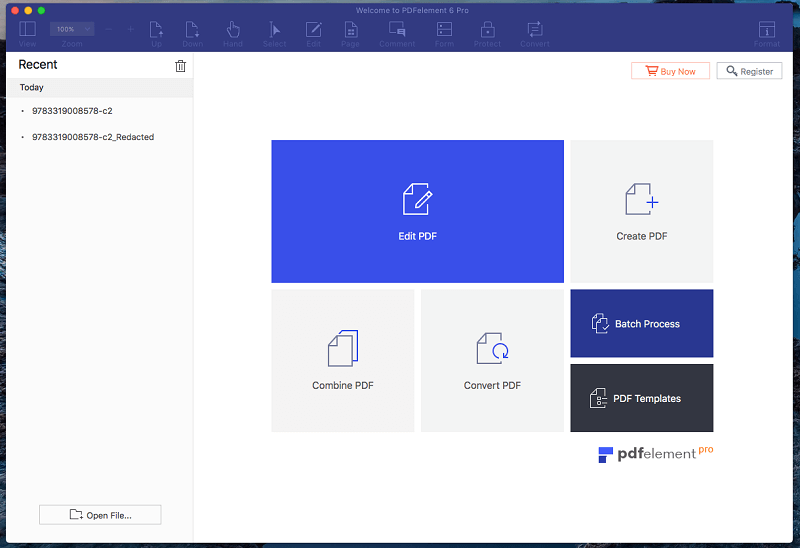
For most users looking for a full-featured yet intuitive and affordable PDF editor, we recommend Wondershare PDFelement. PDFelement provides a comprehensive tool set for viewing, creating, editing, converting, and signing PDFs on both Windows and Mac. But it balances this power with ease of use, so you can get up and running quickly.
The interface is clean and well-organized, with all the tools easily accessible from toolbars and panels. Editing text and images is smooth, with the ability to modify text blocks while retaining the original fonts. You can add, delete, reorder and rotate pages.
The Pro version provides advanced features like OCR for scanned documents, form field recognition, batch processing, redaction, and document signing. And PDFelement can export PDFs to a wide variety of editable formats like Word, Excel, PowerPoint, HTML, and image files.
Pricing is straightforward. PDFelement Standard is $79/year, while Pro is $129/year. There are no monthly fees. This makes PDFelement significantly less expensive than Adobe Acrobat, while still providing a rich feature set that is powerful enough for most business users and flexible enough for complex documents. A 20% educational discount is available for students and teachers.
Pros:
- Robust PDF editing, creation and conversion
- Edits PDF text and images while preserving fonts and formatting
- Supports OCR and fillable forms
- Easy to use interface
- Affordable perpetual license, no subscription
- Educational discount
- Windows and Mac versions
Cons:
- Lacks some of the enterprise-level features of more expensive editors
- No integrated web or mobile apps
Try PDFelement free for 14 days
Easiest PDF Editor for Mac: PDF Expert
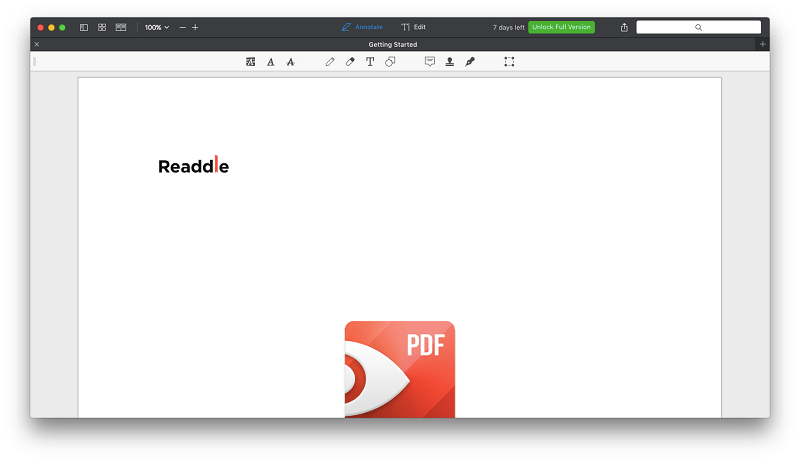
For Mac users looking for a PDF editor that combines essential editing features with unmatched speed and ease of use, we recommend PDF Expert. True to its name, this editor‘s streamlined interface and intuitive tools will quickly make you a PDF expert.
All the tools are organized into two tabs: Annotate and Edit. Just select some text and the appropriate options instantly appear. Adding highlights, notes, shapes and more is fast and fluid. The editing tools are not designed for complex changes, but you can easily correct text, add or replace images, redact content, and rearrange pages.
PDF Expert also provides reliable form filling and signing. However, it does not include OCR for scanned documents or the ability to create fillable forms. The focus is on making working with PDFs as fast and intuitive as possible.
At $79.99, PDF Expert is priced similarly to PDFelement, but with a more focused feature set that prioritizes speed and ease of use. If your PDF editing needs are relatively straightforward, it‘s an excellent choice to boost your productivity. A free 7-day trial lets you test it out.
Pros:
- Uncluttered, intuitive interface
- Fast, fluid annotation and editing
- Reliable form filling and signing
- Reasonably priced
- Free trial available
- Optimized for Mac
Cons:
- No OCR or form creation
- Lacks advanced editing features
- Mac only, no Windows version
Try PDF Expert free for 7 days
Most Powerful PDF Editor: Adobe Acrobat Pro
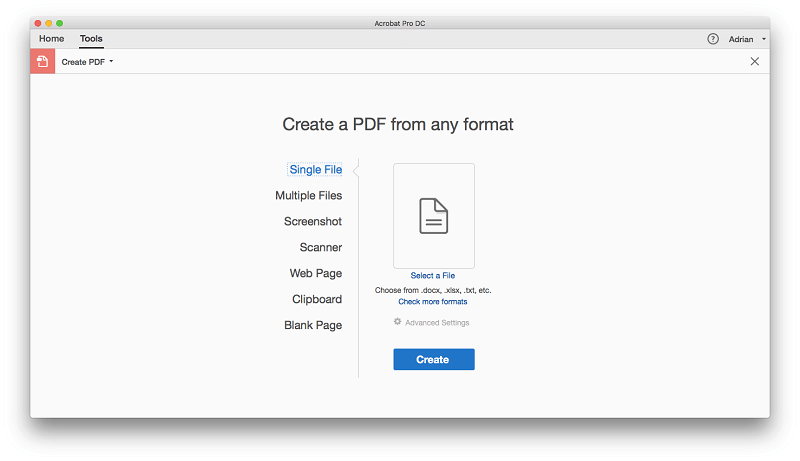
For users with complex PDF editing needs, Adobe Acrobat Pro remains the most powerful, feature-rich option. As the creator of the PDF format, Adobe provides unmatched capabilities for creating, editing, exporting, and automating PDFs.
With Acrobat Pro, you can create full-featured PDFs from any application that prints, or from scanned paper documents. Powerful OCR recognizes text with unmatched accuracy, even reproducing the original fonts. You can extensively edit text and images, while adjusting typography and layout. Full redaction and security controls protect your documents.
Acrobat also provides advanced tools for working with PDF forms, including automatic form field recognition, interactive form creation, and electronic signatures with tracking. PDFs can be exported to a variety of fully editable formats like Word and Excel.
This power comes at a price: Acrobat Pro is $179.88/year, making it the most expensive PDF editor. And there is a learning curve to master its comprehensive features. But for professional users who need the ultimate in PDF editing capabilities, Acrobat Pro remains the gold standard.
Pros:
- Powerful, comprehensive PDF editing and creation
- Excellent OCR accuracy preserves fonts and formatting
- Automated form field recognition and advanced form creation
- Extensive document security controls
- High quality PDF to Word and Excel conversion
- Integrated web and mobile apps
Cons:
- Most expensive option at $179.88/year
- Complex interface and steeper learning curve
- Subscription model, no perpetual license
Try Acrobat Pro free for 7 days
Other Top PDF Editors to Consider
Beyond our top picks, there are a few other PDF editors worth considering for specific use cases:
Best PDF to Word Converter: Able2Extract
If your primary need is converting PDFs into editable Microsoft Office formats, Able2Extract is the best tool for the job. While it provides PDF viewing, editing, and annotation features, its core focus is high-quality conversions. Able2Extract can faithfully reproduce complex layouts in Word, Excel and PowerPoint. It‘s an excellent tool for repurposing PDF content.
Best OCR: ABBYY FineReader
For working with scanned PDFs, ABBYY FineReader has the most powerful and accurate optical character recognition technology. Its OCR engine can precisely extract text, formatting and layout from scans in over 190 languages. FineReader also provides excellent PDF editing and conversion features.
Free PDF Editors
If your PDF editing needs are basic, you may not need a paid tool. Free options provide essential viewing, markup and light editing features:
Adobe Acrobat Reader is Adobe‘s free PDF viewer. It lets you view, search, and print PDFs, as well as add comments, fill forms, and sign documents.
Preview is the built-in PDF viewer for macOS. Along with viewing PDFs, it allows you to highlight text, add notes, fill forms, and sign documents. The Markup toolbar provides tools for basic annotations.
Alternatives to Editing PDFs
In some cases, modifying a PDF directly isn‘t the best approach. Here are a few alternatives to consider:
Edit the original document. If you have access to the original source file (like a Word document), it‘s often easier to edit that and then create a new PDF.
Convert to an editable format. If you don‘t need to preserve the original PDF, convert it to an editable format like a Word document and make your changes there.
Use an alternative document format. Depending on your needs, a different format like a Word document, image file, or web page may work instead of a PDF.
Useful PDF Editing Tips
Here are a few tips to help you get the most out of your PDF editing software:
- Use OCR when working with scanned PDFs to make the text searchable and editable.
- Take advantage of annotation tools to collaborate and gather feedback.
- Secure sensitive documents with passwords and permissions.
- If a PDF is difficult to edit, try converting it to an editable format first.
- Use batch processing features when you need to apply the same changes to multiple PDFs.
The Bottom Line
The right PDF editor can make a big difference in your productivity when working with this ubiquitous file format. For most users, we recommend PDFelement for its blend of powerful features, ease of use, and affordable pricing. If you prioritize simplicity, PDF Expert is the best choice for Mac. For professional users with advanced needs, Adobe Acrobat Pro is the most comprehensive solution.
Ultimately, the best PDF editor for you depends on your unique needs, budget, and preferences. We hope this guide has helped you understand your options and make an informed decision. Here‘s to working smarter with your PDFs!
